How to Display Product Stock Count in syncX: Preorder
The Stock & Sold Count feature in syncX: Preorder lets you display product inventory quantities on your Shopify product pages. You can customize the messages shown when products are in stock or out of stock to keep customers informed about product availability.
Configure Product Inventory Count
Follow these steps to display the current inventory count on your product page.
Open syncX: Preorder in your Shopify admin.
Click on Settings in the navigation bar.
Navigate to Stock & Sold Count.
Select Product inventory count.
Under Display product inventory count, set the status to Enabled.
Customize the stock count text for in-stock and out-of-stock products.
1. Customize Stock Count Text
You can customize the messages displayed to customers based on product availability.
Enter the message you want to display when a product has available inventory.
Example: {{stock_count}} available
The {{stock_count}} variable is replaced with the product's inventory quantity.
For example, if the product has 34 units in stock, the message will display:
Enter the message you want to display when the inventory quantity is zero or below.
Example: Not in stock
This message is displayed when the product has no available inventory.
iii. Custom text
Enter the message you want to display when the inventory quantity is zero or below on products that continue selling.
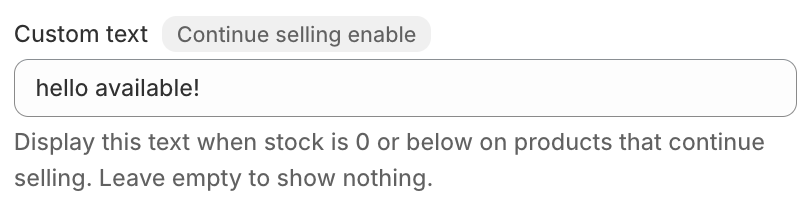
Example: hello available!
This message is displayed when the stock is 0 or below on products that continue selling.
For example, if the product has 0 units in stock, the message will display:
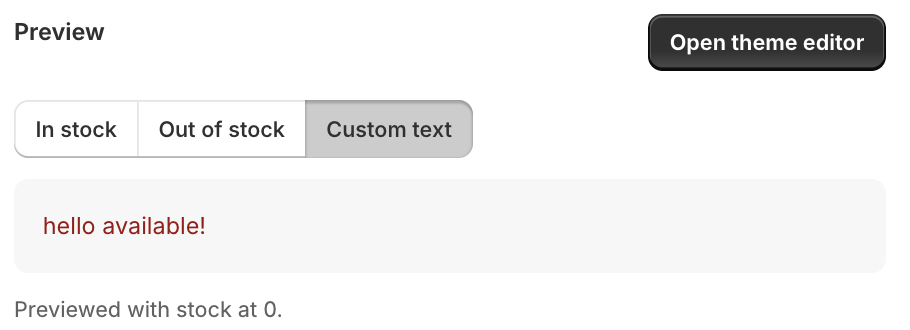
Example: hello available!
This message is displayed when the stock is 0 or below on products that continue selling.
2. Ignore Inventory tracked
Enable this option to display stock information even for products whose inventory is not tracked. When the quantity is zero or below, the out-of-stock message is displayed.
Note: Custom text is not used when Ignore Inventory tracked is enabled.
3. Show Variant Inventory Quantity
Enable Show variant quantity to display the inventory quantity of the selected product variant instead of the total inventory across all variants.
For example, if a product has multiple sizes, customers will see the inventory quantity for the selected size rather than the combined quantity for all sizes.
Plan requirement: This feature requires the Starter plan or another eligible higher-tier plan. If the option is unavailable, click Upgrade your plan to review the available plans.
Plan requirement: This feature requires the Starter plan or another eligible higher-tier plan. If the option is unavailable, click Upgrade your plan to review the available plans.
4. Customize the Appearance
Expand Customize appearance to adjust the appearance of the stock count displayed on your product pages.
Depending on the available settings, you can customize:
Font style: Make the text bold.
Font size: Adjust the text size.
Font colour: Change the text colour.
5. Sync frequency
Configure the sync frequency to determine when the sold count is updated automatically.
Select the available days and schedule settings according to your requirements.
6. Hide when sold count is below
Use Hide when sold count is below to hide the sold count display when the number of units sold is below your specified value.
For example, if you set the value to 10, the sold count display will be hidden when fewer than 10 units have been sold.
7. Customize Sold Count Text
Use Sold count text to customize the message displayed for the number of units sold.The sold count variable is replaced with the actual number of units sold.
For example, you can use a message such as {{sold_count}} sold to display the number of units sold.
{{sold_count}} sold to display the number of units sold.